
Use GratiaPay card with
Samsung Pay
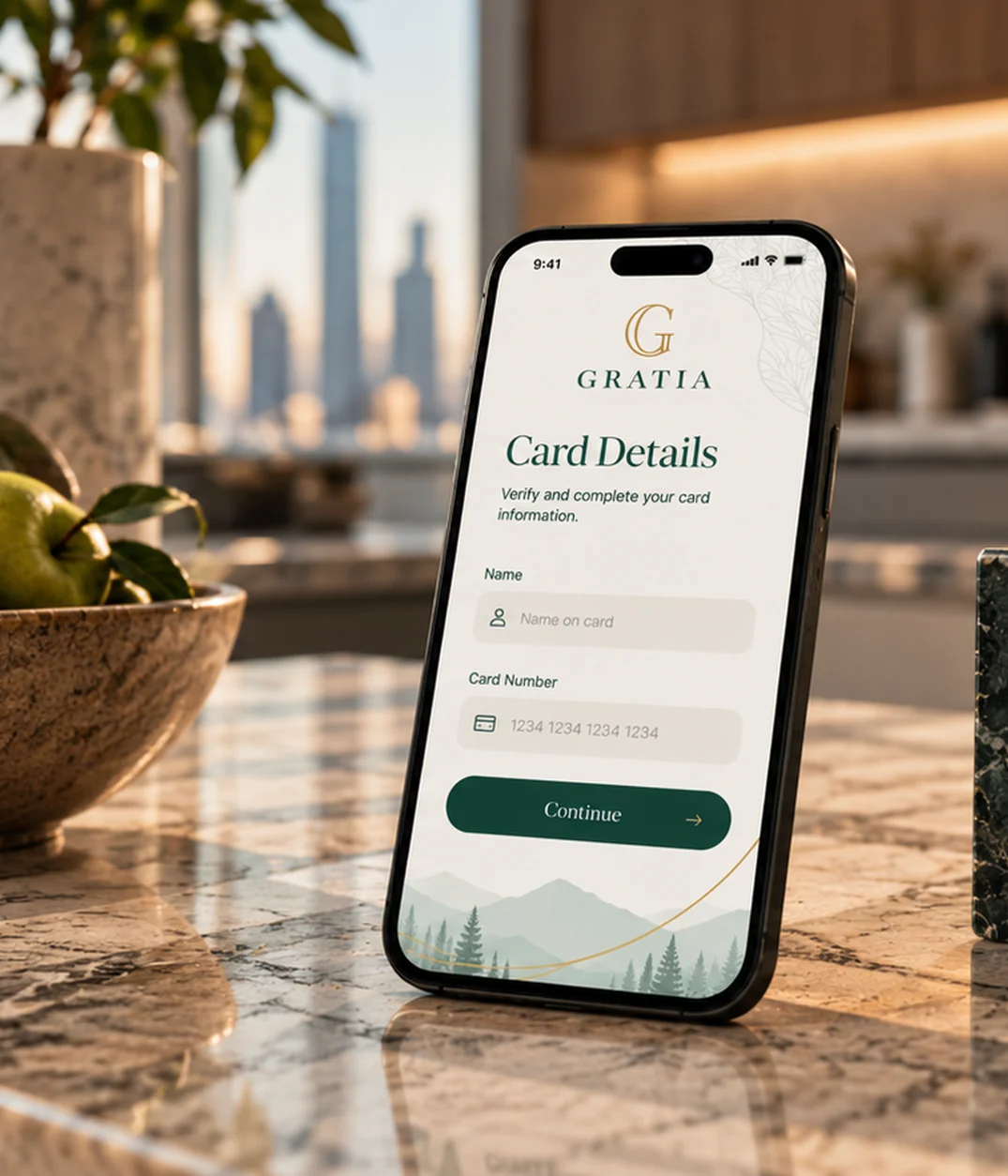
ADD YOUR CARD
How to add a card
Adding your card to Samsung Pay is simple. Here’s how to get started.
- Navigate to and open Samsung Pay on your phone.
- Tap Menu (the three horizontal lines) in the top left corner, and then tap Cards.
- Next, tap Add card; it looks like a credit card with a plus sign next to it. Next tap Add credit/debit card.
- Follow the instructions to register your card. When you add a card, you must agree to the card's terms and conditions.
- If you have any questions about the terms, contact us at cardsupport@gratiapay.com.
- Once the card is added, you can start using it to make in-store purchases with your phone.
- In some cases, additional verification may be required if the information on your device (name, address, or phone number) doesn’t match our records. The verification phone number will appear during setup. If you get stuck while adding your card to Samsung Wallet and don’t receive a code, call 1-888-803-9916 or email cardsupport@gratiapay.com for assistance.
check out process
How to pay
When you're ready to pay, open Samsung Pay on your phone.
- Tap the Pay tab, and select your preferred card. Tap Pay again, and then choose your desired security option, such as entering your PIN or fingerprints.
- Enter the required security information or simply place your finger on your phone's fingerprint scanner.
- Next, hold the back of the phone up to the contactless reader and perform your desired actions to complete your purchase.

Use Samsung Pay wherever you see one of these symbols.

The GratiaPay prepaid Mastercard® is issued in Canada by Digital Commerce Bank under license from Mastercard International. Program management and platform services are provided by Pateno Payments Inc. Use of the card is subject to the Cardholder Agreement with Digital Commerce Bank.
** Mastercard® and the Mastercard Brand Mark are registered trademarks of Mastercard.