
Use GratiaPay card with Apple Pay

ADD YOUR CARD
How to add a card
Adding your card to Apple Pay is simple.* Here’s how to get started.
- For iPhone, open the Wallet app and tap the “+” sign.
- For Apple Watch, open the Apple Watch app on your iPhone and select “Wallet & Apple Pay,” then tap “Add Credit or Debit Card.”
- On iPad, go to Settings, open “Wallet & Apple Pay,” and select “Add Credit or Debit Card.”
- On MacBook Pro with Touch ID, go to System Preferences, select “Wallet & Apple Pay,” then select “Add Card.”
- Enter your card’s security code to add your credit or debit card. Or, select “Add a different card,” and use your device camera to scan the card information.
Need help adding your card?
- In some cases, additional verification may be required if the information on your device (name, address, or phone number) doesn’t match our records. The verification phone number will appear during setup. If you get stuck while adding your card to Apple Wallet and don’t receive a code, call 1-888-803-9916 or email cardsupport@gratiapay.com for assistance.
check out process
How to pay
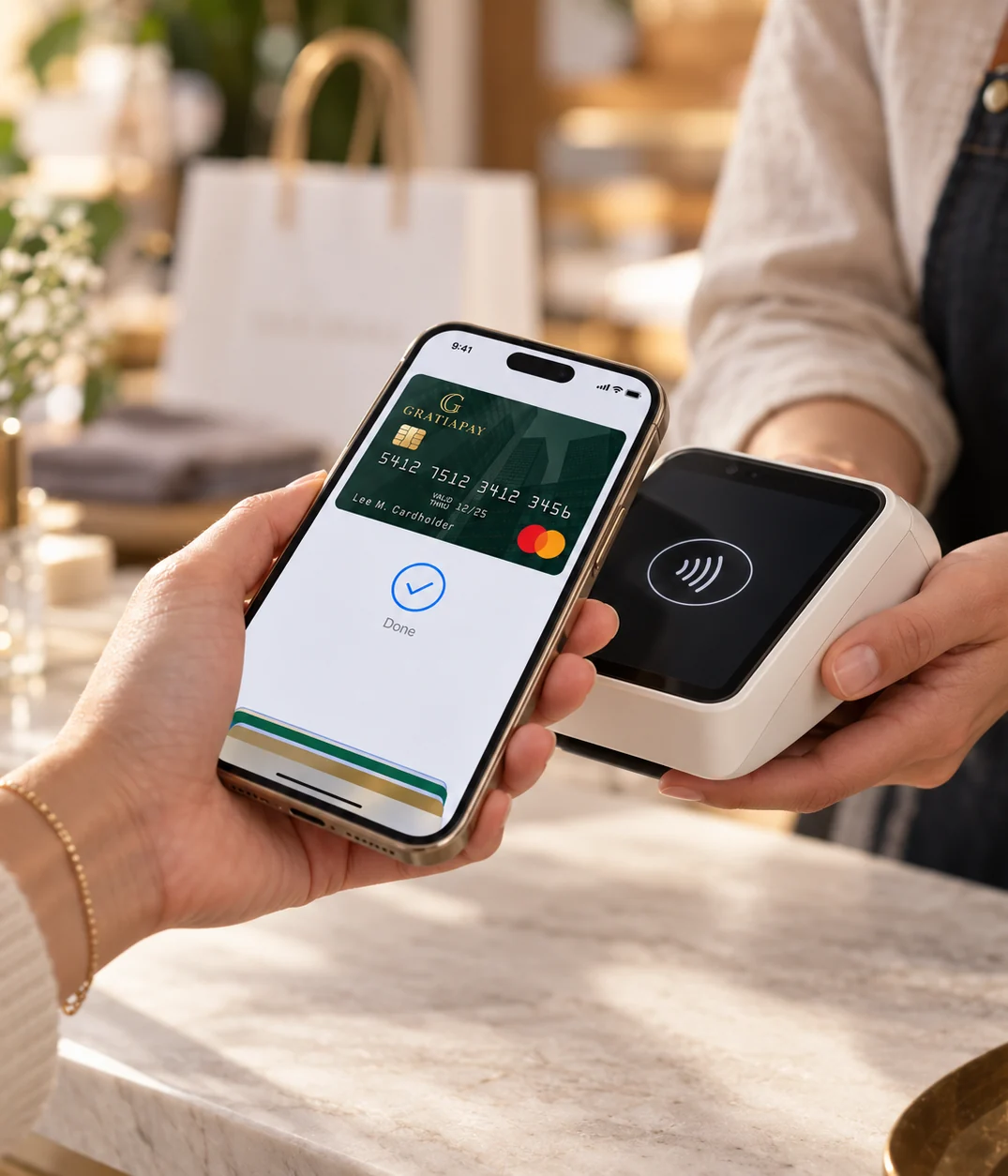
Apple Pay is the easier, safer way to pay in stores, in apps, and on the web with your iPhone, Apple Watch, iPad, and Mac.* You can also quickly check out online and in apps faster because you no longer have to create an account or fill out lengthy forms.
- To pay with Face ID, double-click the side button, glance at your screen, then hold your iPhone near the reader.
- For Touch ID, hold your iPhone near the reader with your finger on Touch ID. On Apple Watch, double-click the side button and hold Apple Watch up to the reader.
- Apple Pay is the easier, faster way to pay in apps and on the web because you no longer have to create an account or fill out lengthy forms.*
- To pay in apps and on websites in Safari on your iPhone and iPad, select Apple Pay at checkout and complete the payment using Face ID or Touch ID.
- To pay on websites in Safari on your Mac, select Apple Pay and complete the payment using your iPhone or Apple Watch. On MacBook Pro, pay using Touch ID on the Touch Bar.
Use Apple Pay wherever you see one of these symbols.
Legal: For a list of compatible Apple Pay devices, see support.apple.com/km207105.
The GratiaPay prepaid Mastercard® is issued in Canada by Digital Commerce Bank under license from Mastercard International. Program management and platform services are provided by Pateno Payments Inc. Use of the card is subject to the Cardholder Agreement with Digital Commerce Bank.
* Apple, the Apple logo, Apple Pay are trademarks of Apple Inc., registered in the U.S. and other countries
** Mastercard® and the Mastercard Brand Mark are registered trademarks of Mastercard.
** Mastercard® and the Mastercard Brand Mark are registered trademarks of Mastercard.